


File prep
Resolution, color, and cropping
Check whether the uploaded file has enough resolution and the right color profile for the size you want.


Sizing guide
Choose the image size, crop, and border with fewer surprises before the print reaches production.
On The Stackhouse, there are two sizes that matter:
If you choose a border, we add that white space outside your image size, which increases the final size.
This matters most when framing or ordering prints to fit existing mats or frames.
Aspect ratio is the relationship between width and height. If your image’s aspect ratio does not match the image size you choose, cropping will occur.
If you want to avoid cropping entirely, choose an image size that matches your file’s native aspect ratio, or add a border without changing the image crop.
Cropping is not an error. It happens automatically when your image and chosen image size do not share the same aspect ratio.
Cropping typically removes content from the edges, and you can reposition the crop in the preview. If preserving the full image is important, always review the crop preview before ordering.
Borders add white space around the outside of your image. They do not shrink your image. They increase the final paper size.

Borders are added after you choose your image size and crop, so you always control the artwork dimensions first.
Final size formula: final width = image width + (2 × border), final height = image height + (2 × border)
Example: 8×10 image + 1" border → (8+2) × (10+2) = 10×12 final
If you already own a frame or mat, measure the opening, not the outer frame size.
Choose your image size to match the frame or mat opening, then add a border if you want additional white space.
Image size decisions are closely tied to your paper or canvas choice and the printing method being used. If you’re new to professional printing, our giclee fine art prints page explains how giclée printing works and how image size and borders affect your final print.
The size you choose on the product page is the image size (printed artwork area).
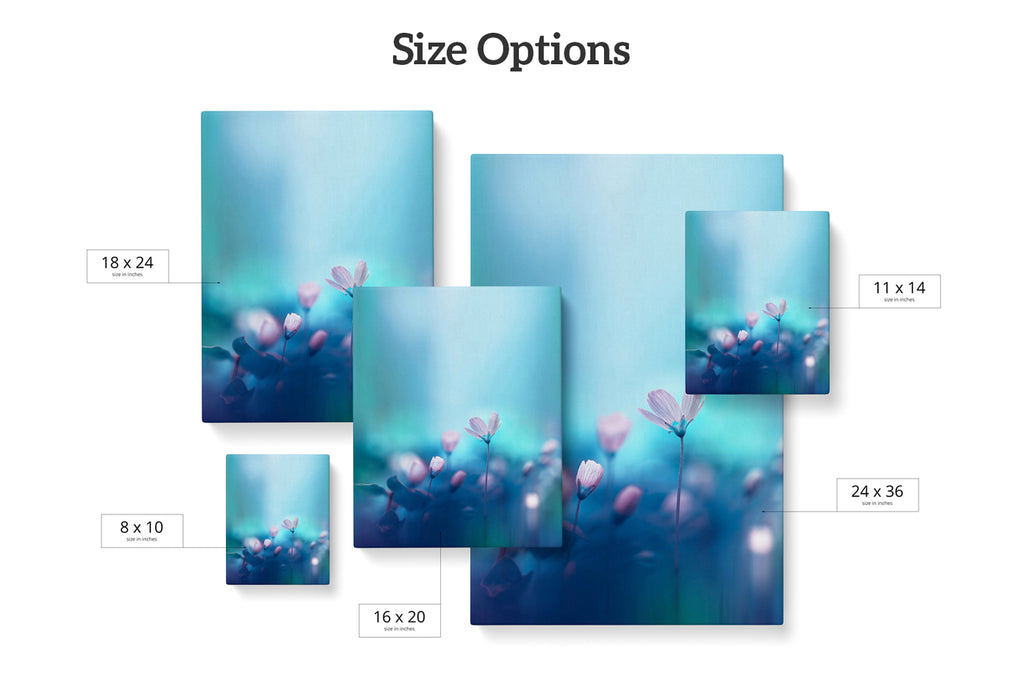
The maximum printable image size depends on your file’s pixel dimensions after cropping. A file can be large enough before crop and too small after a tight crop, so check the final preview.
As a general rule:
Divide the pixel dimensions by 150 to estimate the largest recommended image size in inches
Example: 3600 × 2400 pixels → approximately 24 × 16 inches
Printing larger than your file supports can result in softness or pixelation.
To confirm your file supports the image size you’re choosing, review our file preparation and resolution guide before uploading.
The image sizes below can be printed without cropping when matched correctly.
| 1:1 | 4:5 | 2:3 | 3:4 | 5:7 | 1:2 | 1:3 | ISO | US | Special |
|---|---|---|---|---|---|---|---|---|---|
| 4×4 | 8×10 | 4×6 | 6×8 | 5×7 | 10×20 | 10×30 | A6 | 8.5×11 | 7×10 |
| 5×5 | 16×20 | 8×12 | 12×16 | 12×24 | 12×36 | A5 | 11×17 | 11×14 |
We provide crop previews, multiple border options, and real human support before printing. If you’re unsure, we’d rather help you choose now than reprint later.
Next steps
These pages help once the crop and border decision is connected to a real order.